Import users
Use user import when you already know who should exist in an app before users start signing in. Imports are useful for pilots, migrations, controlled launches, and initial customer setup.
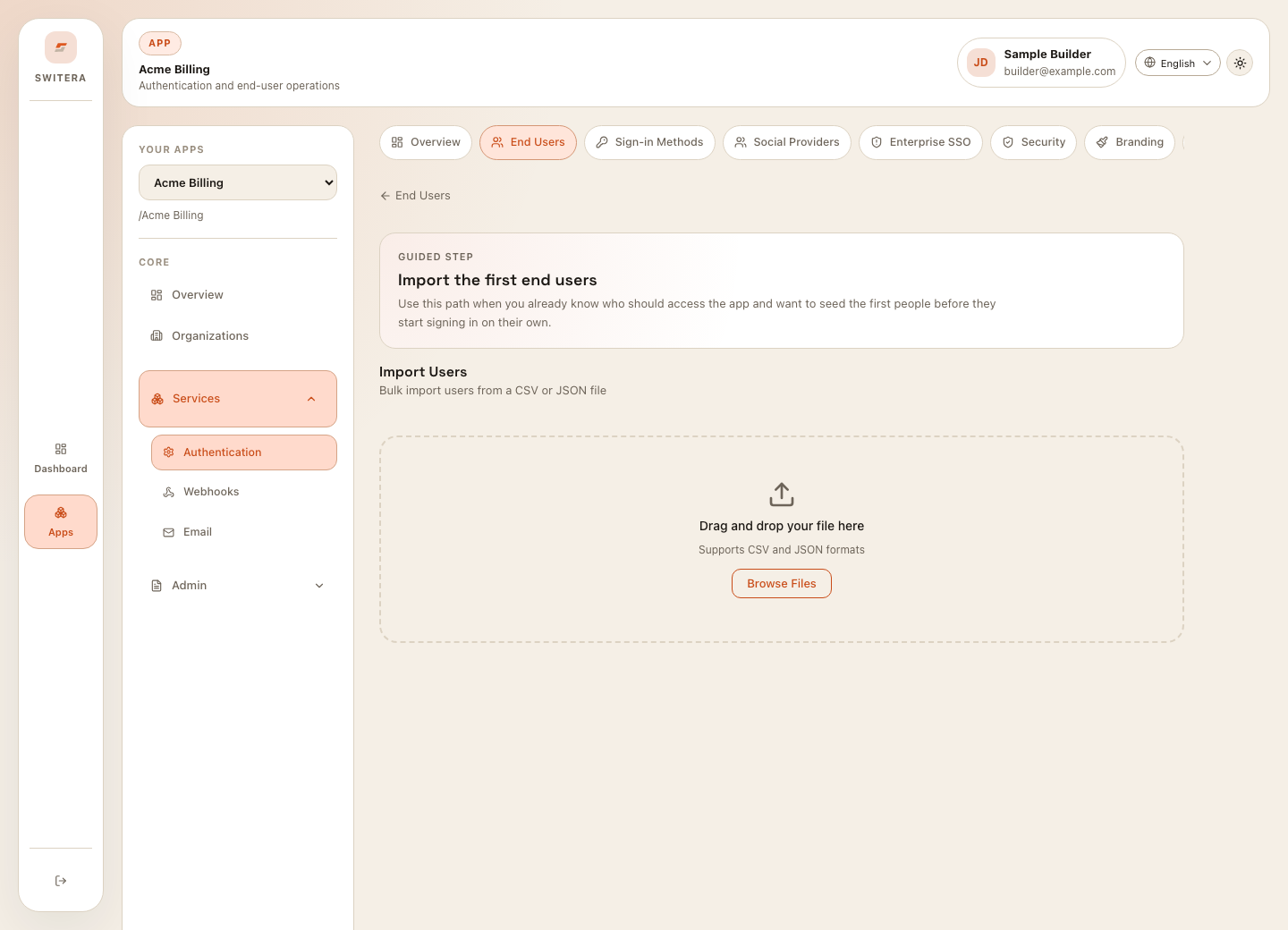
Before importing
Confirm:
- the selected app is correct
- the import file belongs to this app only
- every email address is approved for import
- duplicate rows have been removed
- required user attributes are present
- organization assignment rules are understood
- email and Auth behavior are ready for the imported audience
If the import is part of a migration, keep a copy of the source file in your internal migration record. Do not attach real user exports to public tickets or documentation.
Choose CSV or JSON
Use CSV when the source is a spreadsheet, CRM export, or simple user list.
Use JSON when the source already has nested data or when a migration script produces structured output.
Keep the file focused. Do not include columns Switera does not need for account creation or matching.
Import workflow
- Open the app.
- Open Products > Authentication > End Users.
- Select the import path.
- Drag the file into the upload zone or choose Browse Files.
- Review validation feedback.
- Correct errors in the source file if needed.
- Run the import.
- Review created, updated, skipped, or failed rows.
- Search for several imported users.
- Confirm organization assignments and sign-in behavior before inviting a broad audience.
Run a safe pilot
For the first import into a production-facing app:
- use 5 to 10 test or pilot users
- include at least one user per organization shape
- include the same columns as the full import
- verify search, status, organization assignment, and email behavior
- repeat only after fixing source-file problems
After import
Review:
- total imported users
- skipped rows
- failed rows and error messages
- user status
- organization membership
- whether invitation or verification emails should be sent next
If the import created users but they cannot sign in, check Auth settings, verification requirements, organization access, and whether the user is assigned to the expected app.
Common mistakes
- importing into the wrong app
- including users from multiple products in one file
- using personal test emails in a customer launch import
- forgetting to configure email before inviting imported users
- assuming imported users automatically have organization access
- re-running the same file without checking duplicate behavior
Related pages: