Organization members and invitations
Organizations represent customer accounts, teams, or business entities inside an app. After creating an organization, use the organization detail page to bring in the people who should operate or access that organization.
When to invite members
Invite members when:
- the organization should be managed by a customer team
- another Builder or operator needs access to that organization
- you want a pilot customer to review sign-in and invitation flows
- organization-level access should be tested before a launch
Do not invite real customers until Auth and email are ready. At minimum, review sign-in methods, sender identity, invitation copy, and the hosted invitation flow.
Invite the first member
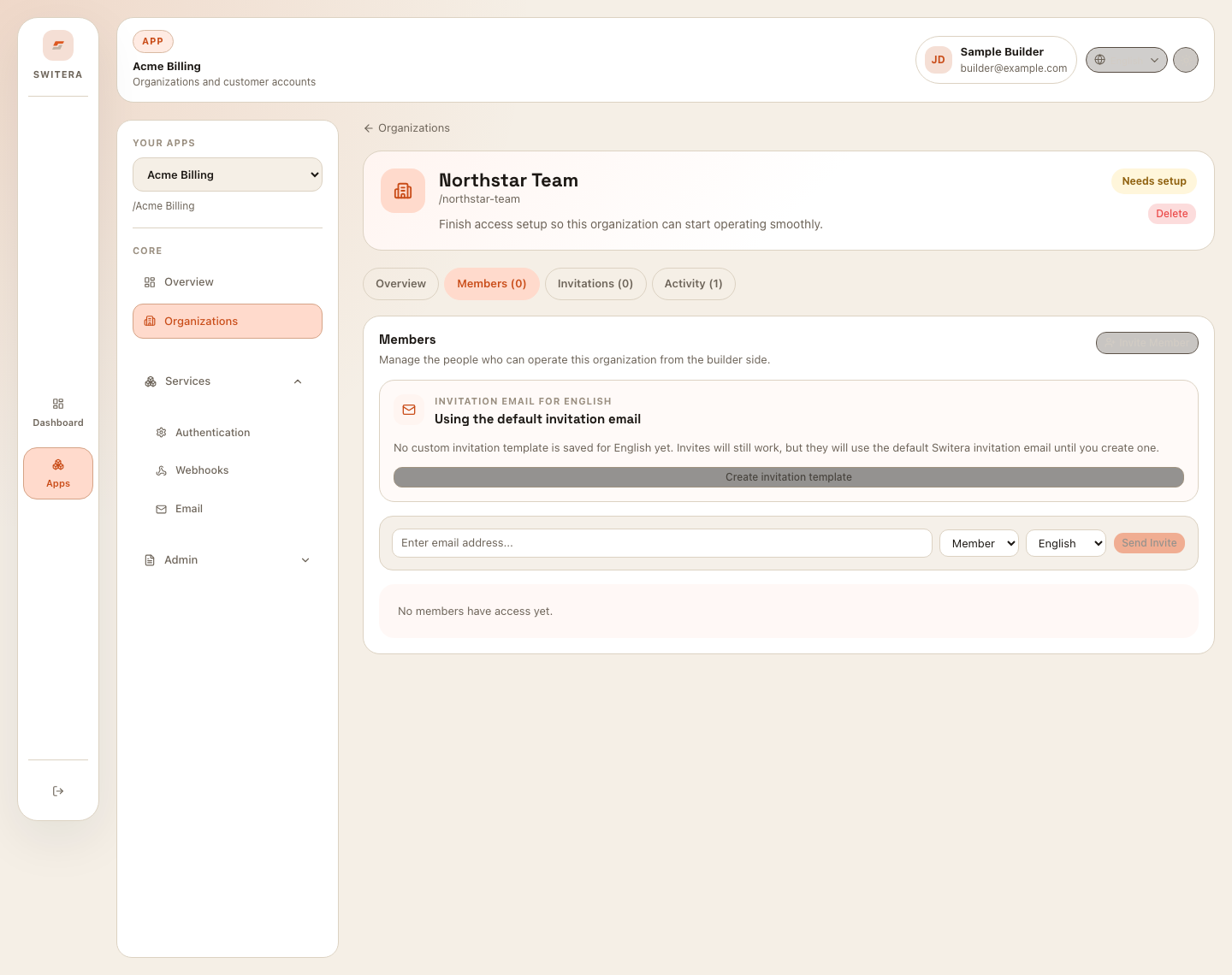
Open the organization and select Members. If the organization has no members yet, Switera can open the invitation form directly from the setup path.
Steps:
- Open Organizations.
- Choose the organization.
- Open Members.
- Enter the recipient email.
- Choose the role.
- Choose the email locale.
- Send the invitation.
- Review the Invitations tab for pending, accepted, revoked, or expired invites.
Pick the right role
Use the least privileged role that lets the recipient do their job. If your team is still finalizing roles, start with a small internal pilot before inviting external customer operators.
Review role choice when:
- a member changes job responsibilities
- a customer organization expands
- a support person only needs temporary access
- an integration account was invited by mistake
Invite from your backend
Use an app-scoped secret API key with manage_tenants permission to create
an invitation. A publishable key or a key for a different app cannot do this.
Keep the secret in your backend; never send it to your customer's browser.
An invitation created with an app secret is app-owned, without a fabricated end-user inviter. When an end user asks your backend to invite someone, verify that user's current organization membership and permission to grant the requested role before making the privileged SDK call. A valid app secret does not prove that the requesting end user is an organization administrator.
Signing in or selecting an organization must not automatically create membership. The recipient must complete the invitation acceptance flow.
Track invitation outcomes
The Invitations tab helps you answer whether a person received, accepted, or still needs help with the invite.
Check:
- pending invitations
- invitation creation time
- invite locale
- accepted or revoked state
- whether a resend is needed
- whether the organization now has the expected members
If a user reports that an invite was not received, check email service health and the recipient address before resending.
Connect end users
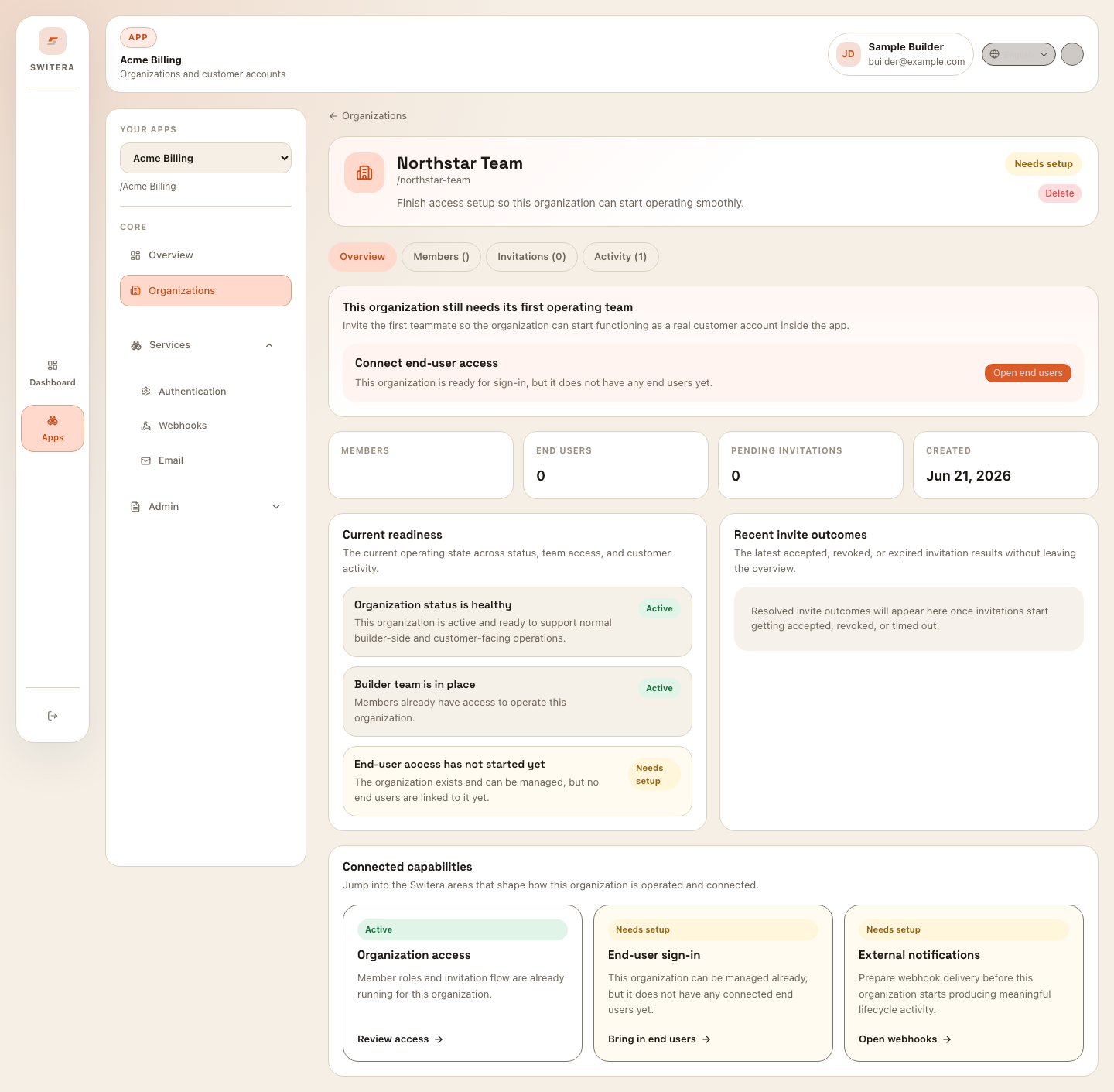
Organization members are not always the same as end users. Members operate the organization from the Builder/customer-admin side. End users are the people signing in to the app experience.
Use Open end users from the organization overview when you need to connect actual product users to the organization.
Readiness signals
The organization overview highlights:
- whether the organization is healthy
- whether a builder/customer operating team exists
- whether end-user access has started
- whether external notifications are prepared
- recent invitation outcomes
Use these signals before a customer launch, during onboarding, or when support needs to understand why an organization is not fully active.
Related pages: