Create and manage organizations
Organizations represent customer accounts, teams, or workspaces inside your app. They give your app a customer boundary before you invite end users, connect enterprise identity, or treat the app as live.
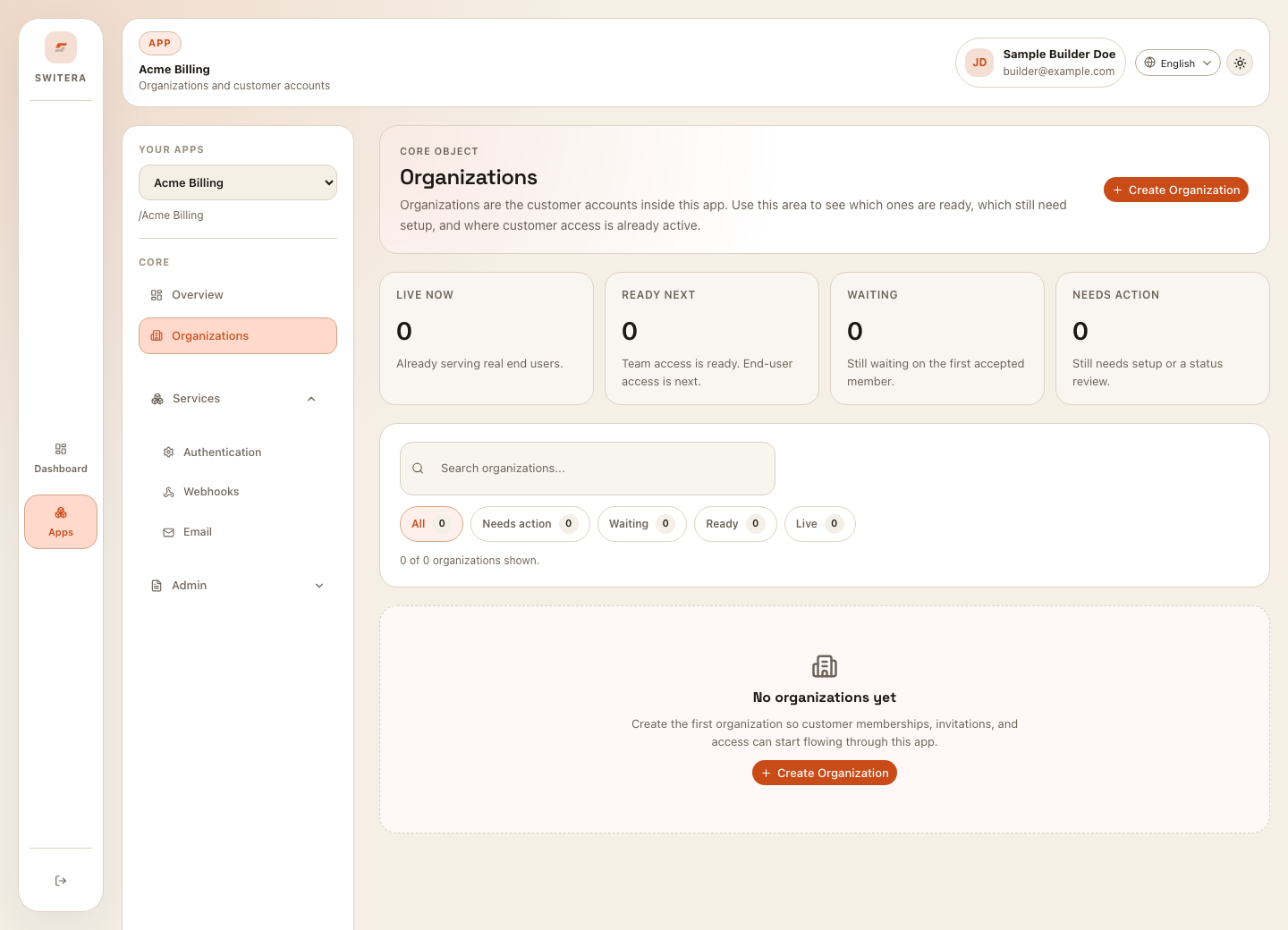
Create an organization
Select Create Organization from the organizations page.
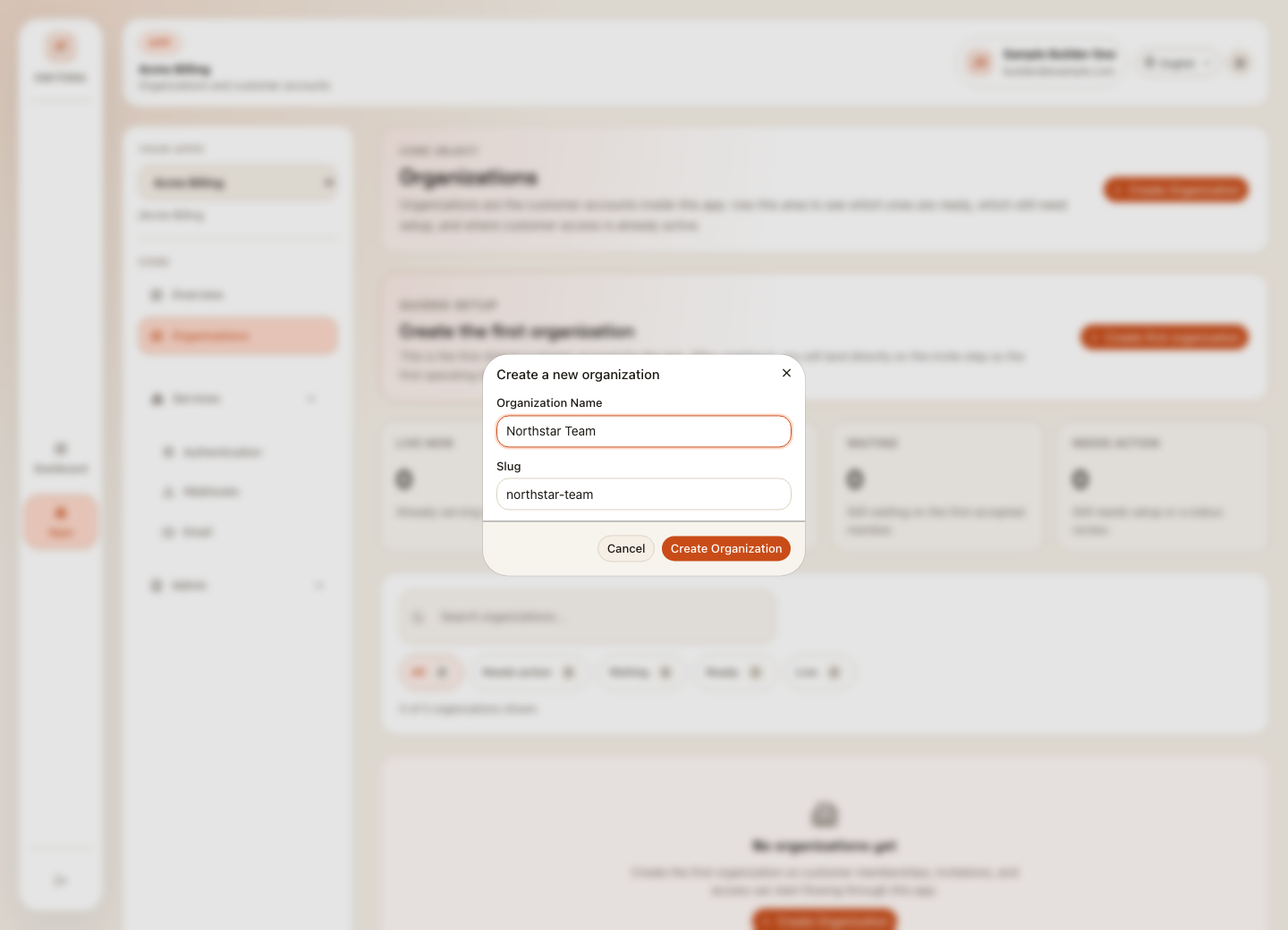
- Enter the organization name.
- Confirm or edit the slug.
- Select Create Organization.
- Open the organization detail page.
- Invite the first operating team or connect identity when ready.
Use a safe test name for a pilot organization. Use a real customer name only when the app is ready for production data.
Understand organization states
| State | Meaning | Builder action |
|---|---|---|
| Setup | The organization exists but has no members or invitations. | Invite the first member. |
| Pending | An invitation exists, but nobody has accepted yet. | Check invitation delivery and expiration. |
| Ready for first end users | The operating team exists, but customer usage has not started. | Bring in first end users. |
| Active | Members, invitations, or end-user activity are flowing normally. | Monitor normally. |
| Needs attention | The organization has a blocker or non-active state. | Review before continuing customer activity. |
Use the filter chips at the top of the page to focus on organizations that need action, are waiting, are ready, or are live.
Invite members
Open an organization and use invitations to bring people into that organization.
When inviting members:
- verify the email address before sending
- choose the least privileged role that works
- send a test invitation before a larger rollout
- resend only when the recipient did not receive the first invitation
- revoke invitations sent to the wrong person
- check email delivery if an invitation is not accepted
Use domains carefully
Organization domains help map email domains to customer organizations. Use them when:
- organization membership should align with a company domain
- SSO should apply only to known domains
- directory sync should map people into the correct organization
- auto-join behavior needs verified ownership first
Do not enable auto-join until the domain is verified and the access model is approved.
Groups and roles
Groups are useful when the organization needs more structure than a flat member list. Roles control what members can do.
Start simple:
- Create the organization.
- Invite one owner or admin.
- Confirm login and access.
- Add groups only when users need different areas or permissions.
- Add custom roles only after the default roles are not enough.
Set organization API limits
Use the organization settings page to cap trusted backend requests for one organization. This protects one customer organization from consuming unlimited traffic through tenant-scoped app API routes.
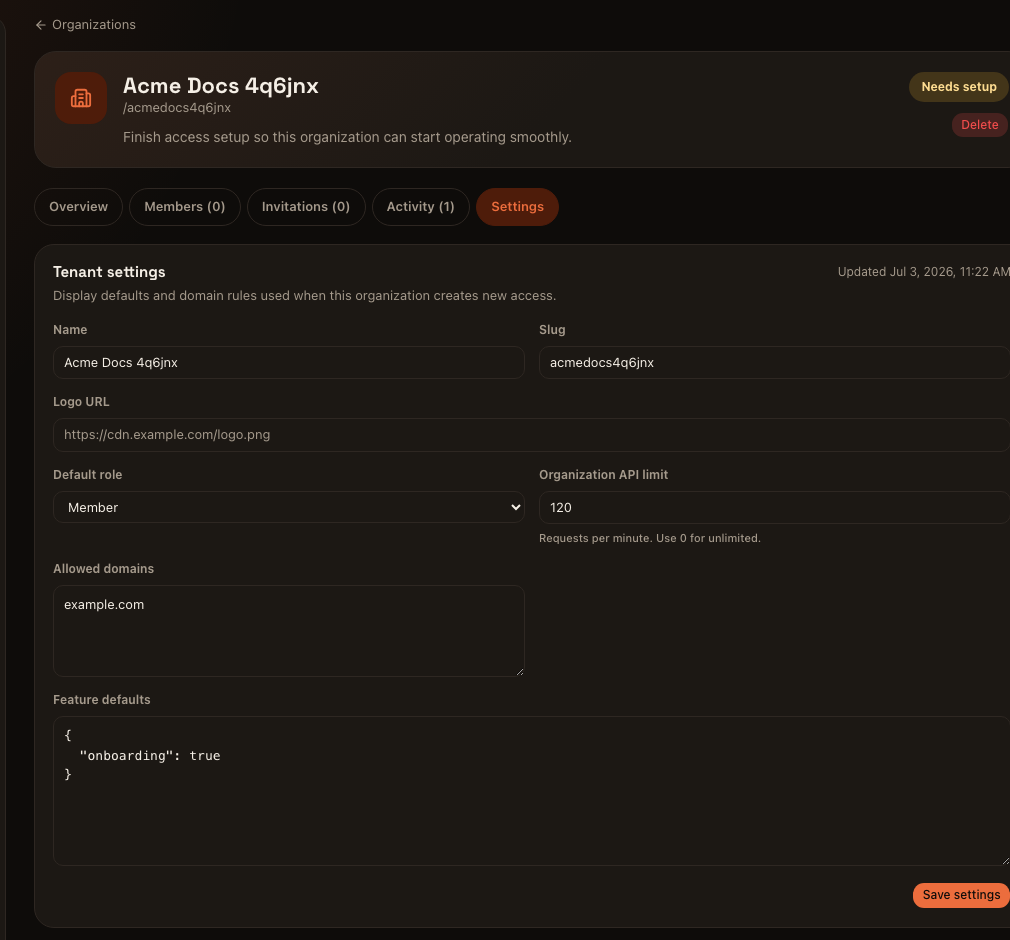
0 for unlimited.Set a limit when:
- a customer has a contracted request budget
- a partner integration needs a safe traffic boundary
- a migration script should not overwhelm organization-scoped APIs
- you want a temporary guardrail during rollout
The same setting is available through the app API as api_rate_limit_per_minute. See API management and limits for request examples and rate-limit headers.
Directory sync and SSO mapping
Organizations can participate in enterprise SSO and directory sync. When using these features:
- configure the SSO connection first
- test login with one organization before broad rollout
- enable directory sync only for the intended connection
- decide whether deprovisioned users should be suspended automatically
- decide whether new directory groups should create organizations automatically
- test role mapping before real users rely on it
Operational checks before launch
Before treating an organization as live:
- at least one intended member has accepted access
- invitation emails render correctly
- domains are verified when domain-based behavior is enabled
- role mapping is understood
- SSO and directory sync are tested if enabled
- the organization does not show a needs-attention state
Related pages: