Troubleshooting
Use this page when a setup step fails or a live workflow does not behave as expected. Start from the affected app, then use the service page and audit logs together.
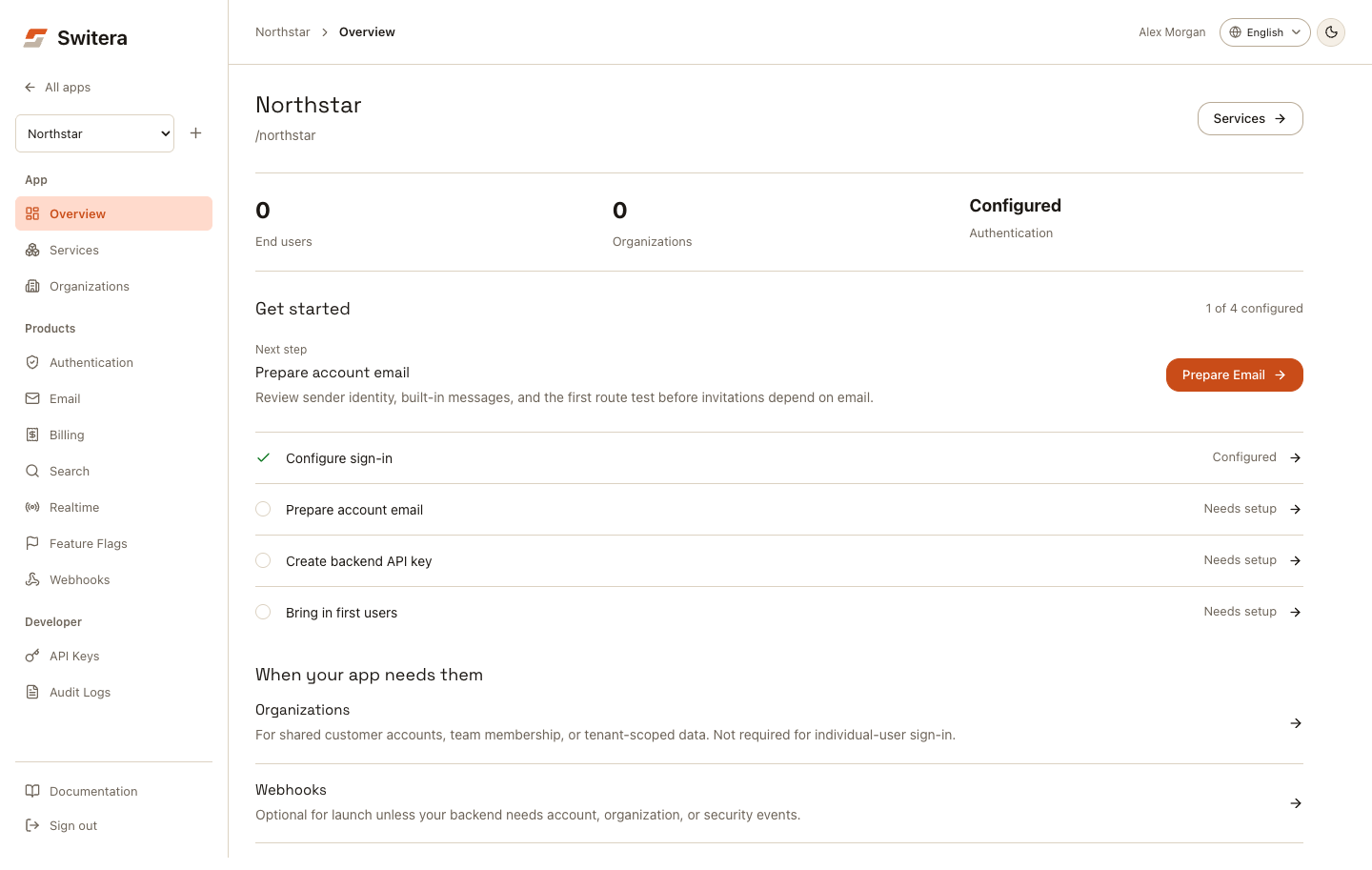
Fast diagnosis path
- Confirm you are in the correct app.
- Read the app overview state.
- Open the affected service.
- Check whether the page shows setup, ready, live, or needs attention.
- Check audit logs for recent changes.
- Test with a single user, endpoint, or message.
- Fix the smallest confirmed issue first.
Login or registration fails
Check:
- the app has a sign-in method enabled
- email verification policy is intentional
- provider credentials are correct
- redirect URI matches exactly
- user is not banned or suspended
- MFA requirement matches the user state
- session policy is not forcing an unexpected step
- hosted Auth branding and legal settings do not block the flow
Next pages:
Invitations are not accepted
Check:
- organization exists
- invitation was sent to the correct address
- invitation is not expired or revoked
- email route test succeeds
- invitation template contains a valid accept link
- recipient is not suppressed
- first member has the intended role
Next pages:
Email does not send
Check:
- sender profile is complete
- sender domain is verified when required
- route test works
- template is active
- recipient is not suppressed
- runtime history shows queued, sent, bounced, or failed state
- built-in email is enabled when the workflow depends on it
Next pages:
Webhook delivery fails
Check:
- endpoint URL is HTTPS
- endpoint is enabled
- endpoint is subscribed to the event type
- receiver returns a success HTTP status quickly
- receiver validates the current endpoint secret
- delivery attempts show the expected response code
- slow work is handled asynchronously by the receiver
Next pages:
API call returns unauthorized
Check:
- secret key is present
- key belongs to the correct app
- key belongs to the correct environment, test or live
- backend is using the current rotated key
- key is not accidentally quoted or truncated
- frontend code is not trying to use a secret key
Next page:
Wrong app was configured
If a setting was changed in the wrong app:
- Stop making changes.
- Open the correct app and compare settings.
- Open Developer > Audit Logs in the wrong app.
- Identify the exact change.
- Revert the wrong setting manually if safe.
- Rotate affected credentials if they were exposed or used in the wrong environment.
- Document the correction for your team.
Escalation checklist
When escalating an issue internally, include:
- app name
- affected organization when relevant
- timestamp and timezone
- user-visible error message
- affected service page
- relevant audit event IDs
- webhook delivery ID or email message ID when relevant
Do not include passwords, provider secrets, API secret keys, private tokens, or unnecessary personal data.