Audit logs
Audit logs help Builders understand what changed in an app, who changed it, and when it happened.
When to open audit logs
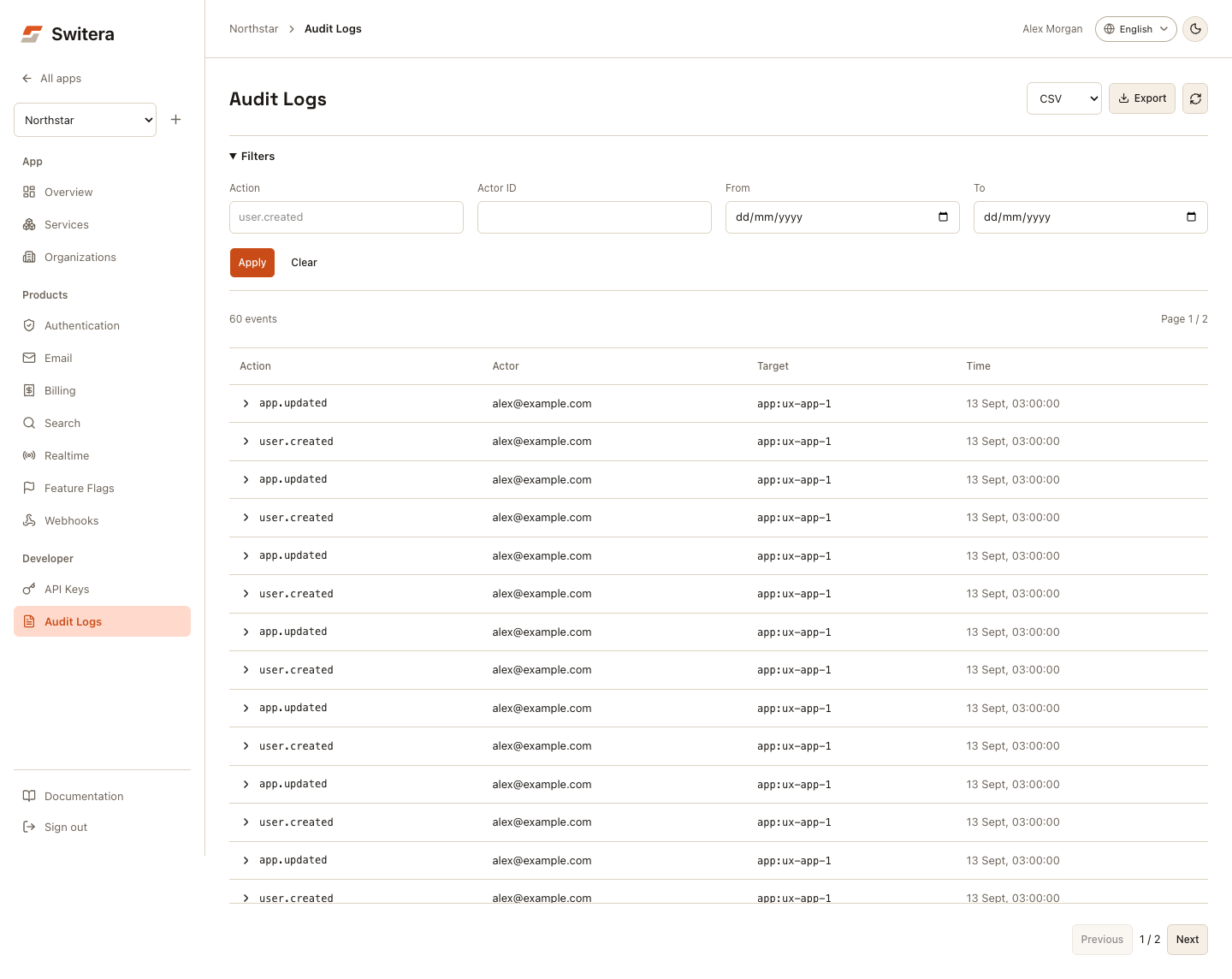
Open Developer > Audit Logs when you need to answer:
- who changed an Auth setting?
- when was an API key rotated?
- who created or edited an organization?
- was a webhook endpoint changed?
- did a setup action happen in the wrong app?
- what changed before a user-visible issue started?
Filter activity
Use filters to narrow the log:
| Filter | Use it for |
|---|---|
| Action or event type | Find one kind of change. |
| Actor ID | Find changes by a specific Builder or system actor ID, not an email search. |
| Date from | Start an investigation window. |
| Date to | End an investigation window. |
Set a narrow time range first. Expand only if the expected event is not visible.
Select Apply to fetch matching events. Typing does not change the current results or export scope. Dates use your browser's local timezone, including the whole end date. Clear removes the applied filters and returns to page one.
Expand an event using the arrow next to its action to inspect full event, actor, and resource IDs, timestamp, IP address, and payload. The table scrolls independently and retains column headers. On mobile, scroll horizontally for the remaining columns. A failed read shows an error and Retry, not an empty log.
Export logs
Choose CSV or JSON in Export format, then select Export. Exports use the currently applied filters, not unsaved filter edits.
Export only what you need. Audit logs can contain operational context and should be handled as internal operational data.
Investigation workflow
- Open the affected app.
- Open Developer > Audit Logs.
- Filter by the approximate time window.
- Search for the affected area, such as Auth, email, webhook, organization, or key.
- Identify the actor and event.
- Compare the current setting with the expected setting.
- Revert the change if safe.
- Rotate credentials if a secret may have been exposed.
What not to put in public tickets
Do not paste:
- passwords
- provider secrets
- API secret keys
- private tokens
- full exported user lists
- raw sensitive log payloads
Include only the minimum context needed for support or engineering review.
Related pages: