Sender domains and delivery routes
Open your app, then Products > Email > Sender & Brand. These settings apply to messages your app sends to its end users. They do not customize Switera's own account notifications to builders.
You need permission to edit the app. For a custom domain, you also need access to its DNS provider. Use a monitored inbox for delivery tests.
Choose the right view
| View | Configure |
|---|---|
| Sender | Default from name, from address, reply-to address and additional senders. |
| Brand | Header, logo, footer, colors and typography, with a sample preview. |
| Delivery | Delivery route, connector settings, sending domains and test delivery. |
Save settings stays at the top as you scroll. It saves all three views together. Switching views keeps your edits; it does not save them. Unsaved changes remains visible until a successful save. If saving fails, your fields remain available for correction and retry. Leaving or reloading the page before saving can lose edits.
Set the default sender
- In Sender, enter the From name your customers recognize.
- Set From email to an address authorized for your delivery route.
- Set Reply-to email to a monitored mailbox, or leave it empty to use the sender address.
- Select Save settings.
Expected result: a confirmation appears and the unsaved indicator clears. Saving an address does not by itself authorize its domain for delivery.
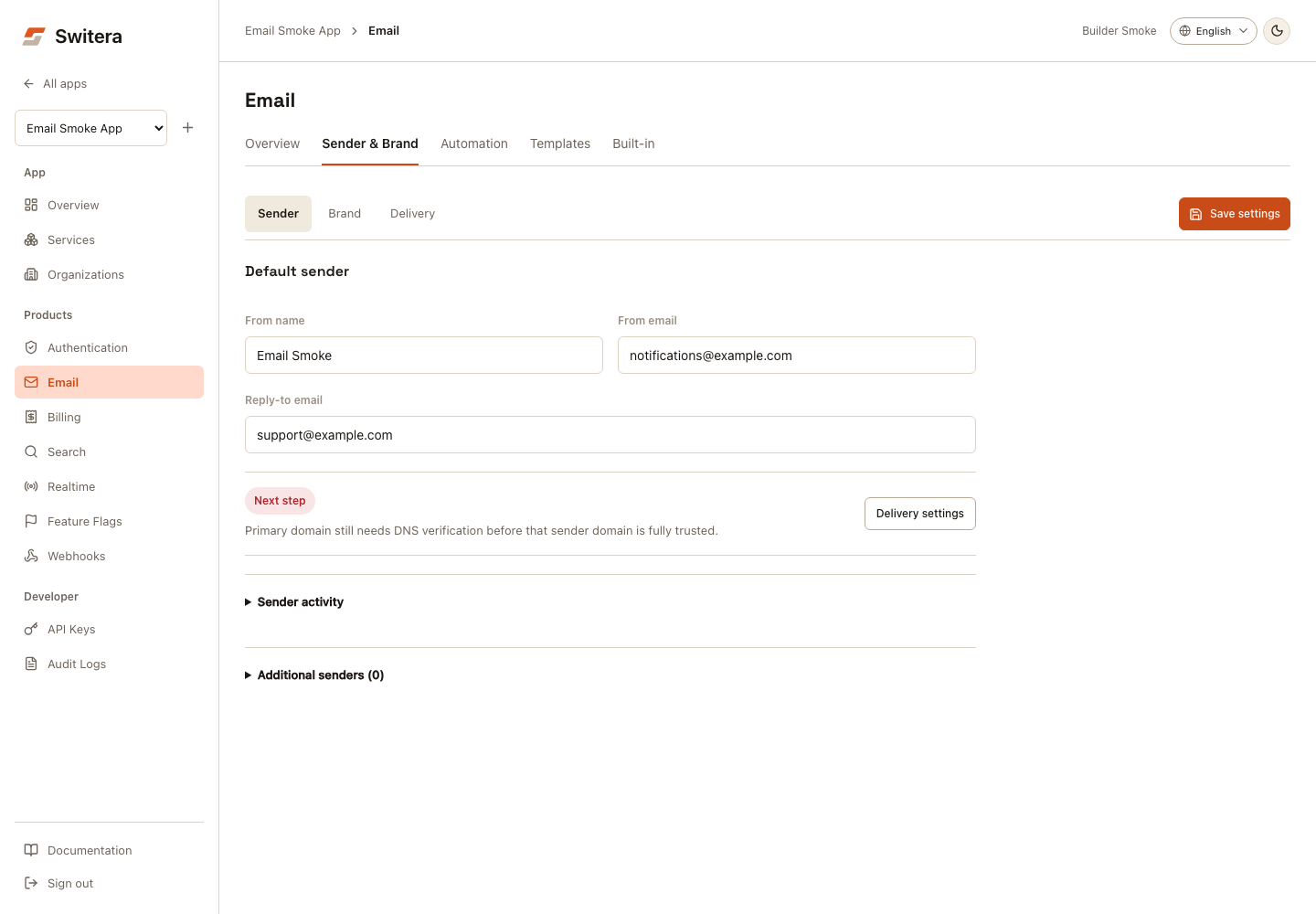
Open Sender activity to review workflow usage and recent delivery signals. To use another identity, expand Additional senders, choose Add another sender, fill its label and addresses, and save. Assign it to the relevant workflow in Automation. A sender already used by a workflow cannot be removed until that workflow is reassigned.
Set the email brand
- Open Brand.
- Set Header title, an HTTPS Logo URL, and Footer text.
- Expand Colors and typography only when needed. Color swatches and values, font family, dark theme, and Reset to app defaults are available here.
- Select Preview to inspect the current draft. Switch between Email and Plain text; return to Edit to continue changing the fields.
- Select Save settings to apply the brand.
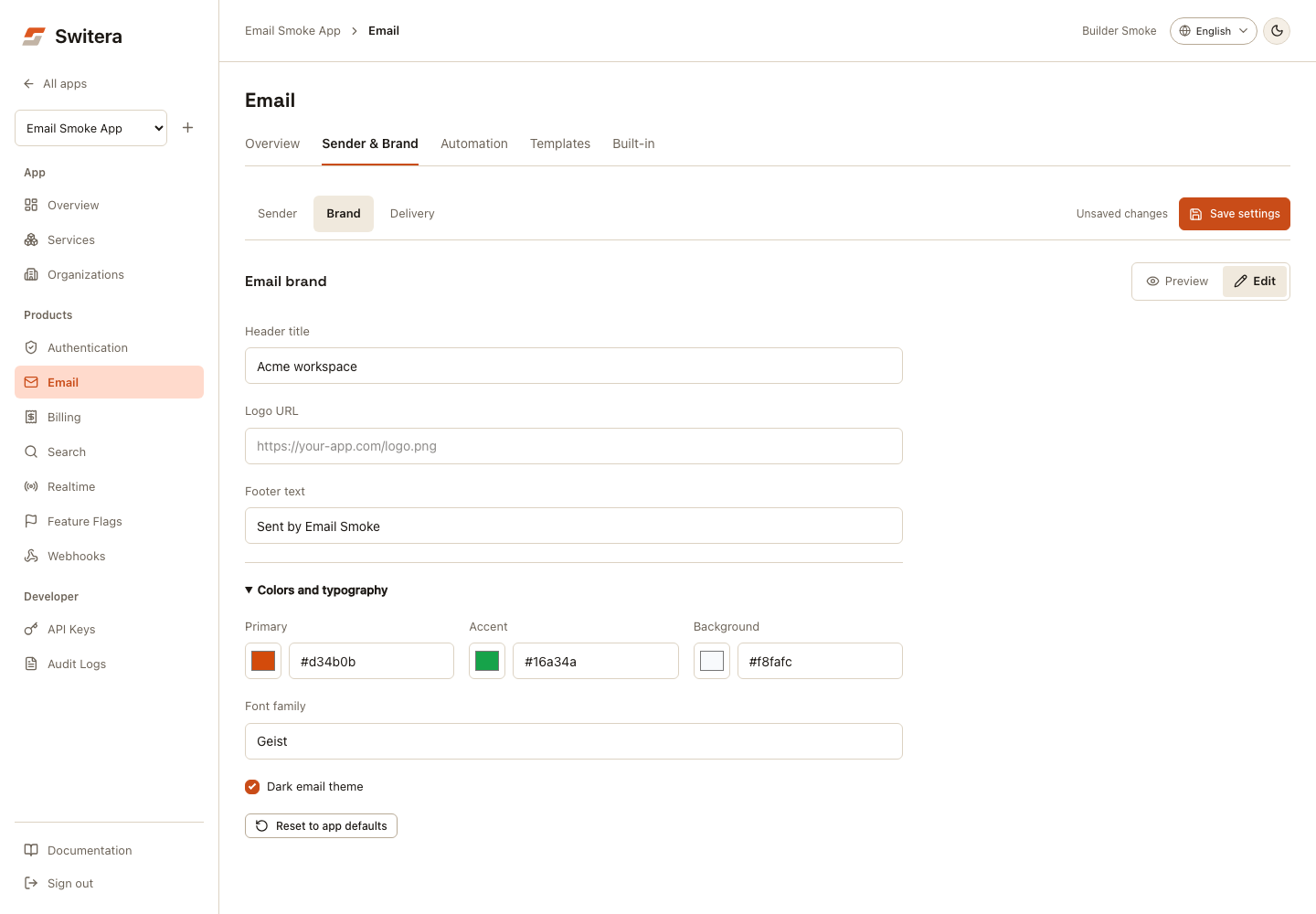
The sample uses your active invitation content, or starter content when there is no active invitation. It is an isolated browser approximation of the email shell, not a mail-client emulator or an inbox-delivery test. Sample actions are inert. Fonts can fall back to an installed font, and insecure HTTP logo URLs are not loaded in the sample.
App defaults are copied into the draft when you choose Reset to app defaults; save afterward to apply them. Preview does not send email. To inspect an actual built-in message, use Built-in after saving; its preview uses saved settings.
Choose a delivery route
Open Delivery, then choose Delivery route. The selector includes each route's current status. Only the selected connector's settings are expanded.
For a connector that requires a key, enter its sender name/address and API key. A blank key field preserves a saved key. Remove saved key schedules its removal when you save; typing a replacement updates it on save. Do not put keys in template copy, screenshots or client-side application code.
A saved route preference is not proof that the connector is active. Review the status and setup message before sending; an unavailable/planned route can remain a saved preference while live delivery continues on the managed path.
| Capability | Current boundary |
|---|---|
| Switera managed delivery | Available; use the active route's authorized sender. |
| Sending-domain ownership and DNS health | Ownership TXT verification and SPF/DMARC health are available. |
| Custom-domain delivery lifecycle | Do not infer signing, route linking or production readiness from a saved domain or ownership check alone. End-to-end onboarding remains a separate rollout. |
Add and verify a domain
- In Delivery, find Sending domains and select Add domain.
- Enter a label and the domain, then select Save settings. Saving generates the ownership record shown by Switera.
- Select Show verification. Use the copy icons beside TXT name and TXT value, and create that exact record at your DNS provider.
- Wait for propagation, then select Verify now.
- For a verified domain, use Show DNS and Check DNS to inspect it again.
Expected result: the ownership status updates. If verification fails, the DNS values remain visible with the error so you can correct them and retry.
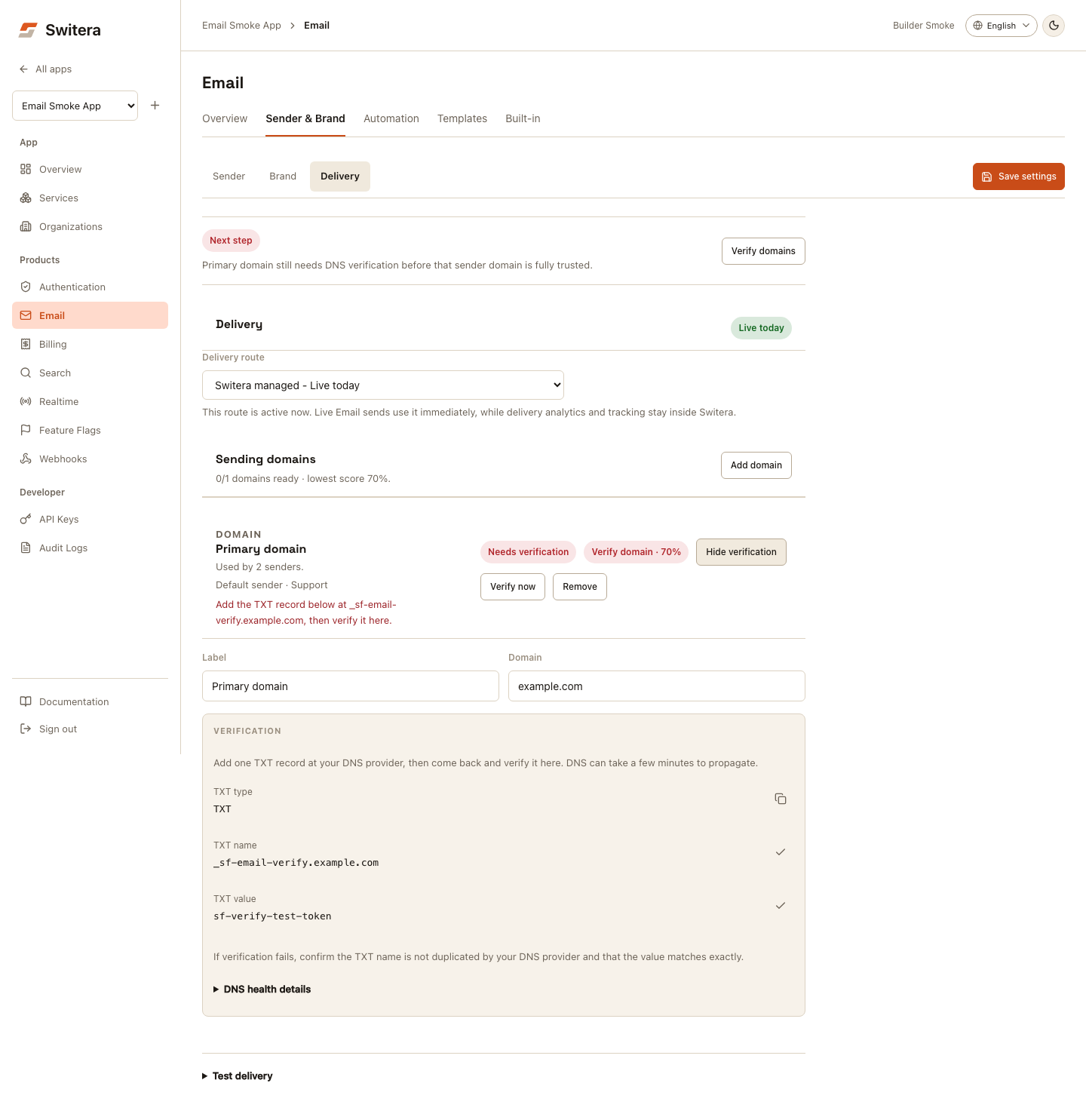
Expand DNS health details for the ownership, SPF and DMARC signals returned by the service. Connector-specific DKIM guidance appears when the selected connector supplies it. Do not invent records or replace an existing SPF policy with the screenshot's example.
Verification is disabled while settings are unsaved, so a check cannot be mistaken for verification of an edited domain that has not been saved yet. Ownership verification alone does not configure DKIM, authorize every sender, link a delivery route or guarantee inbox placement.
Test saved delivery settings
- Save all edits, then open Delivery > Test delivery.
- Confirm that the selected route is available for testing.
- Enter a monitored address in Send to.
- Select Send route test once and review its result.
- Check the received email's sender, reply-to, brand, links and spam placement.
Testing uses the last saved configuration, and the send action is disabled while settings are unsaved. A successful API response is not proof of inbox arrival; check delivery activity and the receiving mailbox.
This test does not prove a login code, verification challenge or workflow trigger works. Test those real user actions separately before launch.
Troubleshooting
| Symptom | Check |
|---|---|
| Save fails | Read the error above the views, correct the affected fields, then retry. Drafts are retained. |
| Verification or test button is disabled | Save pending edits; confirm the route's readiness or that the domain has a generated token. |
| TXT verification fails | Check the exact host and value, duplicated DNS suffixes, and propagation. |
| Ownership is verified but mail fails | Review SPF/DMARC, connector DKIM and delivery authorization; ownership is only one check. |
| Clipboard is unavailable | Select and copy the displayed value manually. |
| The preview differs from an inbox | The browser sample is approximate; inspect the saved template and a real delivery in your target mail clients. |
| A test succeeds but no email arrives | Inspect activity, suppression/bounce results, and spam folders. Avoid repeated sends without checking the previous attempt. |
Related pages: