API keys
API keys identify and authorize server-to-server calls for one app. Treat secret keys as sensitive credentials.
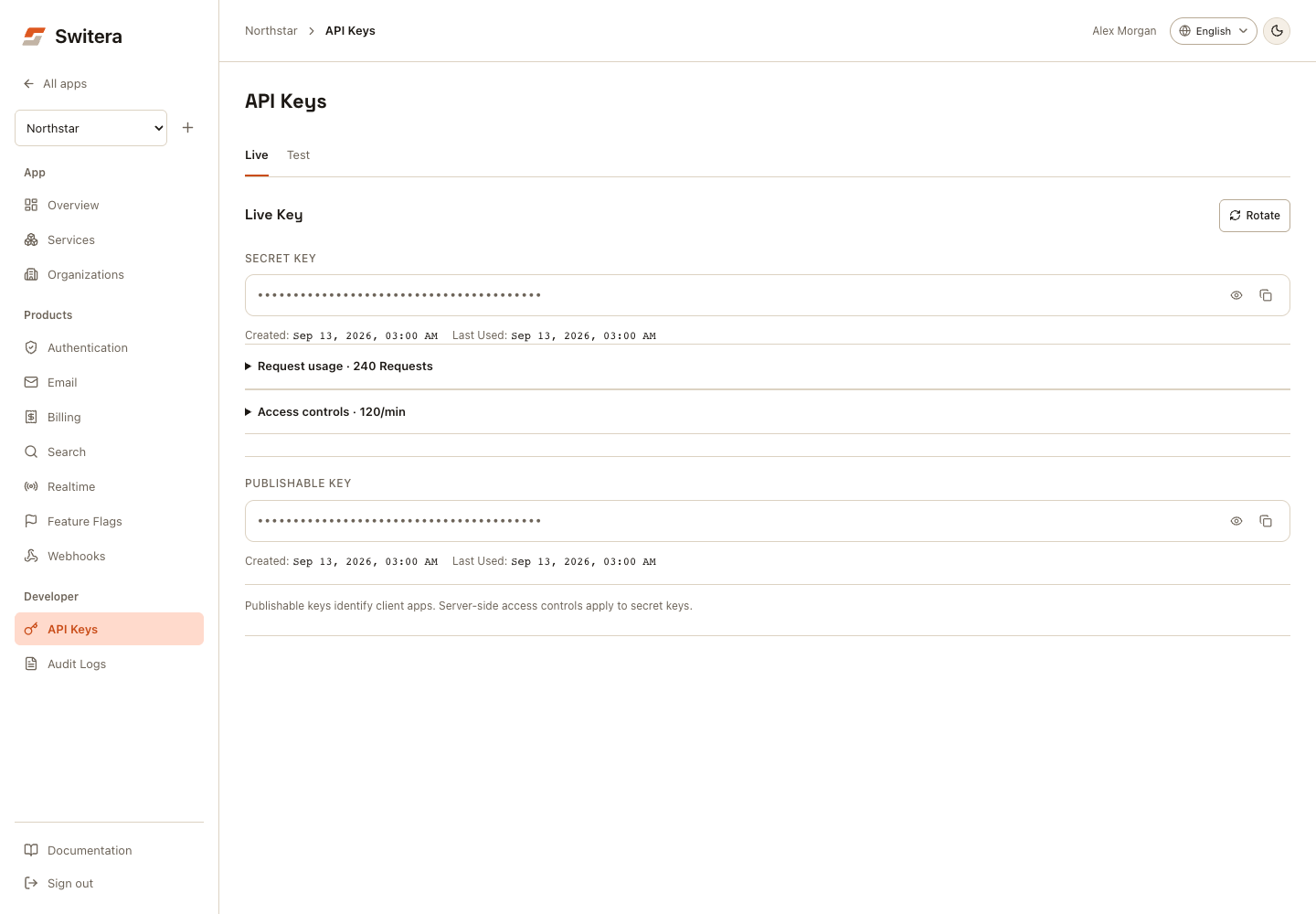
Key types
| Key | Where to use | Exposure |
|---|---|---|
| Publishable key | Browser or client contexts when a public identifier is expected. | Public identifier. |
| Secret key | Trusted backend services only. | Sensitive secret. |
Keys can exist for test and live environments. Keep those environments separate.
Copy a key safely
- Open the app.
- Open Developer > API Keys.
- Select Test or Live. On mobile, use API key environment.
- Reveal the key only when you are ready to store it.
- Copy the key.
- Store it in the trusted backend environment.
- Hide the key again.
- Confirm the backend can call Switera successfully.
Never paste a secret key into frontend code, public tickets, analytics tools, screenshots, or chat.
Switching environments masks revealed keys again. Request usage expands the last 30 days of metrics for the selected secret key. Access controls expands scopes, expiration, request limits, and allowed IPs. Save controls explicitly; switching environments retains drafts, but reloading does not.
Use a key from your backend
Example:
curl "https://switera.com/api/v1/apps/$APP_ID/tenants" \
  -H "Authorization: Bearer $SWITERA_SECRET_KEY"
Store SWITERA_SECRET_KEY in your backend secret storage. Do not commit it to source control.
For scopes, allowed IPs, per-key limits, request usage, and organization request limits, see API management and limits.
Rotate keys
Rotate keys when:
- a key may be exposed
- a team member with key access leaves
- your policy requires scheduled rotation
- you are moving from test to production credentials
Safe rotation pattern:
- Create or rotate the replacement key.
- Deploy the new key to the backend environment.
- Restart or reload the backend service.
- Confirm API calls work.
- Remove the old key from all systems.
- Check audit logs.
Common mistakes
- Using a live key in a test environment.
- Embedding a secret key in frontend code.
- Posting keys in support tickets or chat.
- Rotating a key before the backend has the replacement.
- Treating a publishable key as proof of authorization.
Related pages: