Workspace dashboard and apps portfolio
The workspace dashboard is the first place to look after signing in. It is intentionally cross-app: it helps you decide what needs attention, then sends you into the correct app for detailed work.
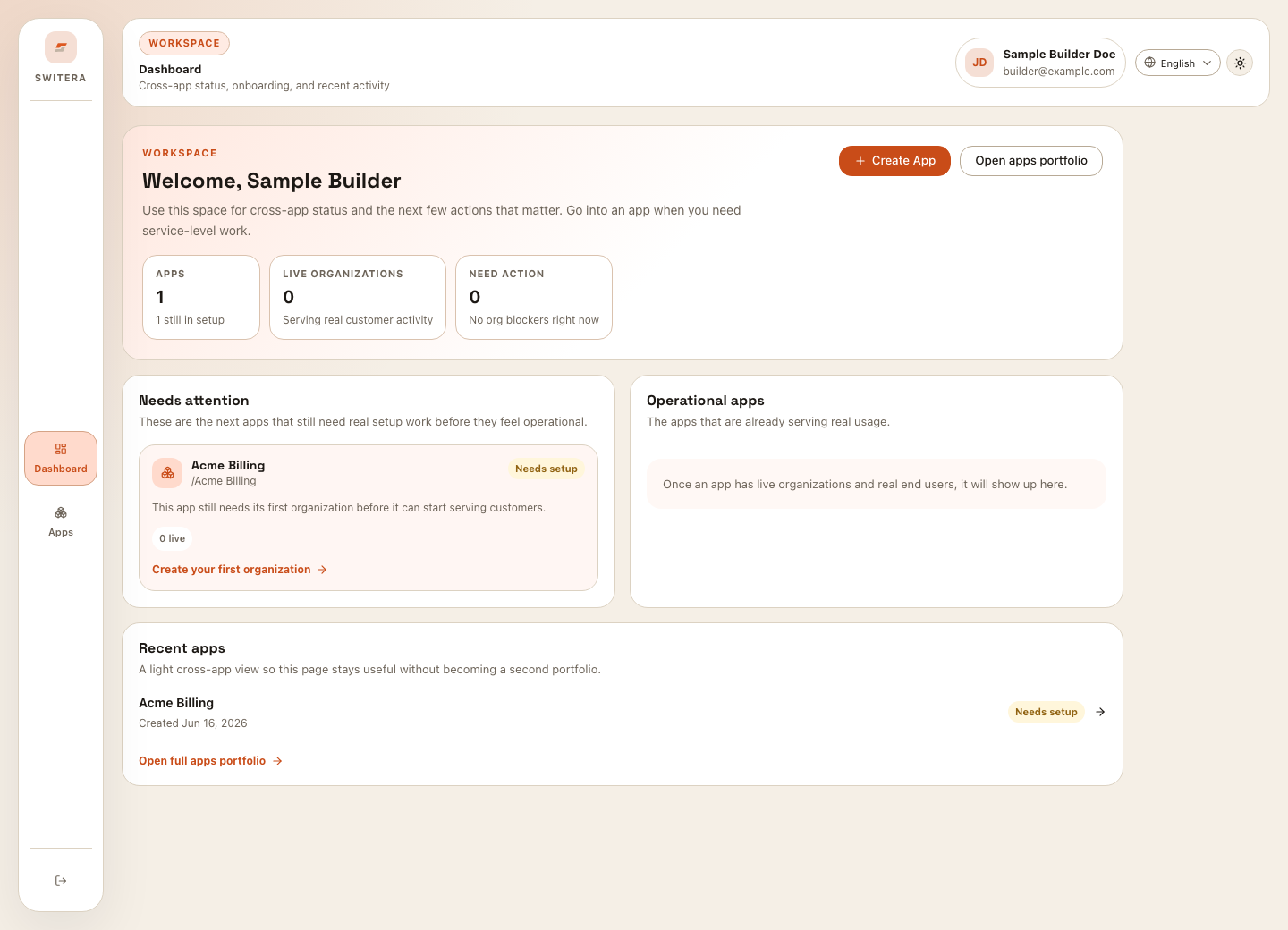
Dashboard sections
| Section | Meaning | What to do |
|---|---|---|
| Apps | Number of apps in the workspace. | Open the portfolio when you need the full list. |
| Live organizations | Organizations currently serving customer activity. | Use this as a quick signal that real usage exists. |
| Need action | Apps or organizations with blockers or setup gaps. | Open the recommended action before inviting users. |
| Needs attention | Apps still missing a baseline requirement. | Follow the action on the card. |
| Operational apps | Apps with real activity. | Monitor them from the app overview and audit logs. |
| Recent apps | Compact recent activity list. | Reopen the app you were working on. |
Daily workflow
Use the dashboard like a triage board:
- Start with Need action.
- Open the app that has the most important blocker.
- Complete the linked setup task.
- Return to the dashboard only when you need cross-app context again.
Do not configure deep service settings from memory. Always open the app first and confirm the app switcher shows the correct app name.
Apps portfolio
The apps portfolio is the full list of app containers in your workspace.
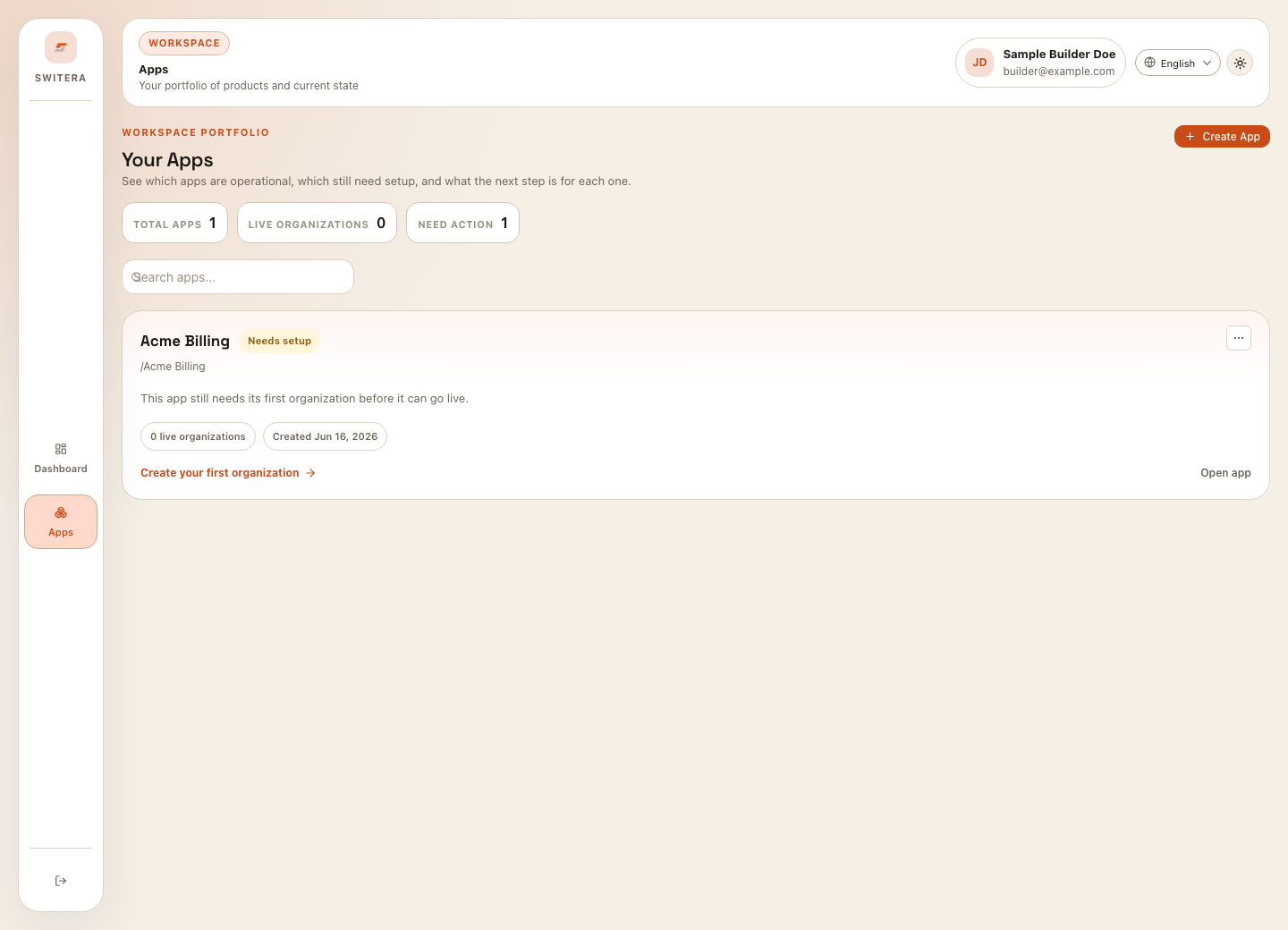
Each app card includes:
- app name and slug
- setup or operating state
- organization count
- end-user count
- created date
- recommended next action
- edit and delete controls when available
Create an app from the portfolio
Select Create App when you need a new product boundary.
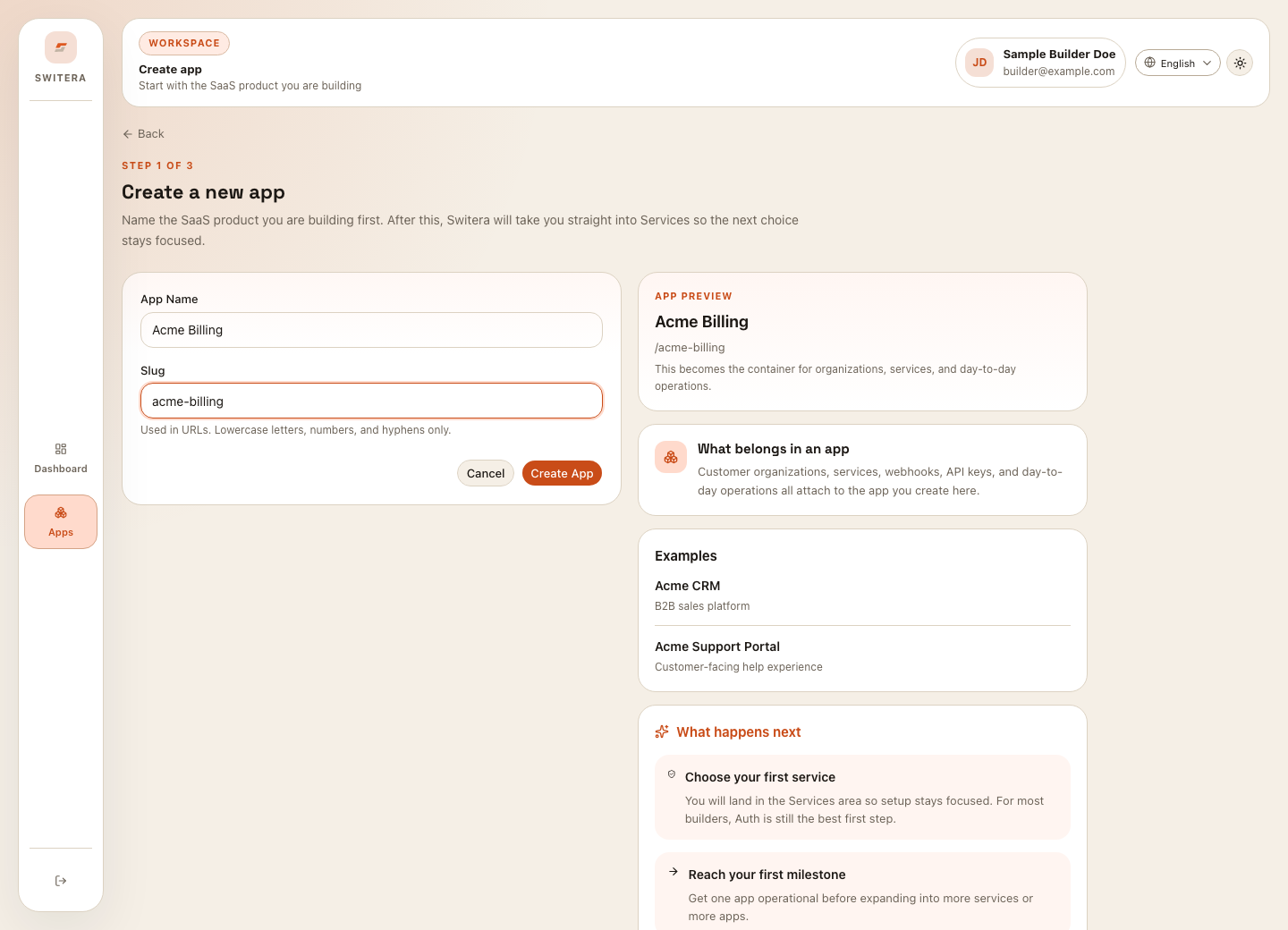
Use a separate app when:
- Auth settings must be different
- organizations and end users should be isolated
- webhook endpoints should be managed separately
- API keys should be scoped to a different product
- audit history should be reviewed independently
Good operating habits
- Treat the dashboard as a starting point, not the place where setup is done.
- Use the portfolio before creating an app to avoid duplicates.
- Open one app at a time when changing Auth, email, webhooks, or keys.
- Confirm the app name in the sidebar before copying credentials.
- Use audit logs after important changes.