Social login
Use Authentication > Social Providers when users should sign in with providers such as Google, GitHub, Microsoft, Apple, or another supported OAuth provider.
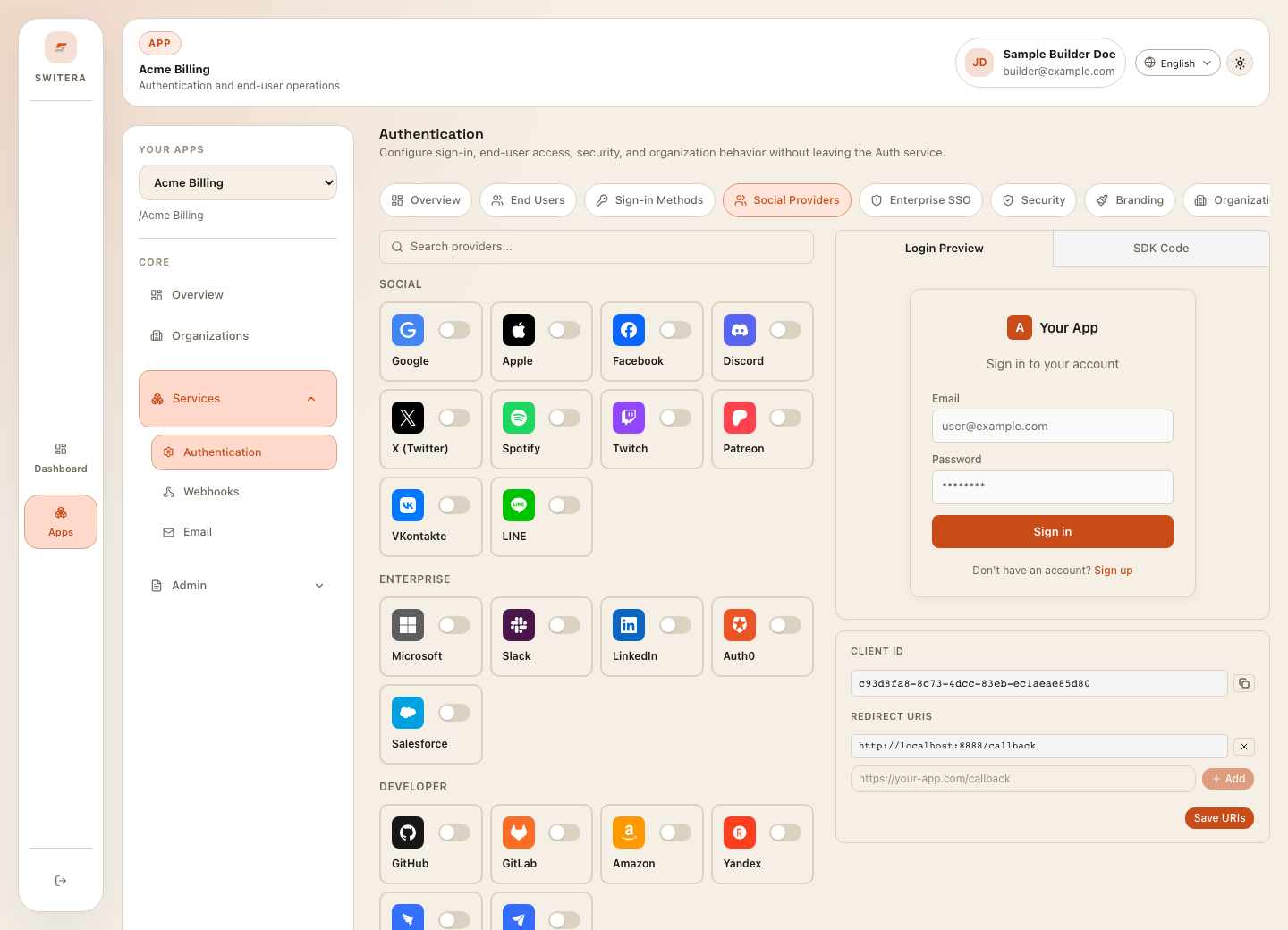
Before you configure a provider
Prepare:
- provider client ID
- provider client secret
- allowed callback or redirect URI
- required scopes, usually profile and email
- test account for the provider
- decision about whether provider login should be available to all users or only selected organizations
Configure a provider
- Open Authentication > Social Providers.
- Select the provider.
- Enter the client ID and client secret.
- Confirm the callback or redirect URI in the provider console matches Switera exactly.
- Save settings.
- Open the login preview if available.
- Test sign-in with a test account.
Provider rollout checklist
Before enabling a provider for real users:
- the provider console contains the exact callback URI
- email scope is enabled when your app needs an email address
- the provider account has a verified email address
- the hosted Auth page shows the provider button clearly
- failed provider login returns a useful error
- audit logs show provider configuration changes
Common errors
| Symptom | Likely cause | Fix |
|---|---|---|
| Provider redirects back with an error | Callback URI does not match. | Copy the Switera callback URI into the provider console exactly. |
| User signs in but profile is incomplete | Required scopes are missing. | Add email/profile scopes in the provider console. |
| Provider button appears but login fails | Client secret or client ID is wrong. | Replace credentials and test again. |
| Wrong users can sign in | Provider is too broad for your access model. | Restrict by organization, domain, or policy where appropriate. |
Related pages: