Sign-in methods
Use Authentication > Sign-in Methods to decide how end users prove identity before entering your app.
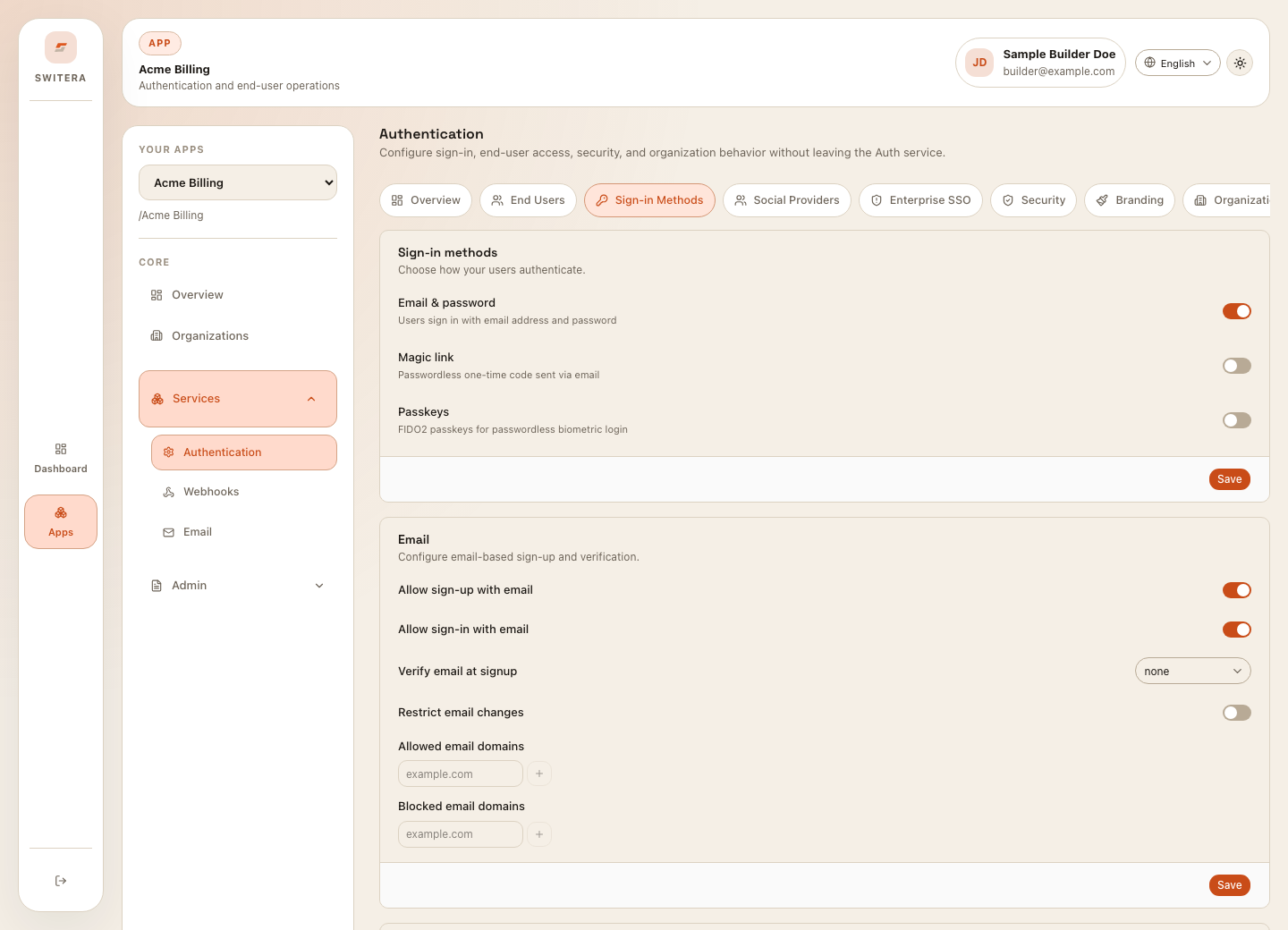
Choose the first method
| Method | Good fit | Watch for |
|---|---|---|
| Email and password | Familiar sign-in with broad compatibility. | Pair with email verification and a sensible password policy. |
| Email sign-in or magic link | Low-friction access where email ownership is enough. | Requires reliable email delivery. |
| Passwordless code | Mobile or lightweight account flows. | Codes must expire quickly and be rate-limited. |
| Passkeys | High security and low friction for supported users. | Keep a fallback method for recovery. |
| Phone/SMS | Mobile-first products or phone-based identity. | SMS delivery and number recycling risk. |
| Username | Apps where email should not be the primary identifier. | Define length and character rules early. |
Configure the baseline
- Open Authentication > Sign-in Methods.
- Enable the primary method.
- Keep recovery enabled if users can lose access.
- Review email verification requirements.
- Review the password policy if password sign-in is enabled.
- Save.
- Test sign-up, sign-in, sign-out, recovery, and verification.
Password policy
For a first production baseline, avoid both extremes. Do not allow weak passwords, but do not make policy so strict that users work around it.
Review:
- minimum length
- complexity requirements
- breached or common password blocking if available
- reset behavior
- whether admins need step-up before password changes
Email verification
Keep verification enabled for real users unless your product has a deliberate reason not to. Verification improves account recovery, invitation delivery, and support diagnosis.
Before launch, verify that:
- the verification email is delivered
- the link or code expires correctly
- users can request another verification email
- the template uses the correct app name and branding
Test checklist
Use a test user and check:
- registration succeeds
- login succeeds
- wrong password or invalid code shows a clear error
- email verification is required or optional as expected
- recovery works
- the user lands in the correct app experience
- audit logs record the configuration change
Related pages: