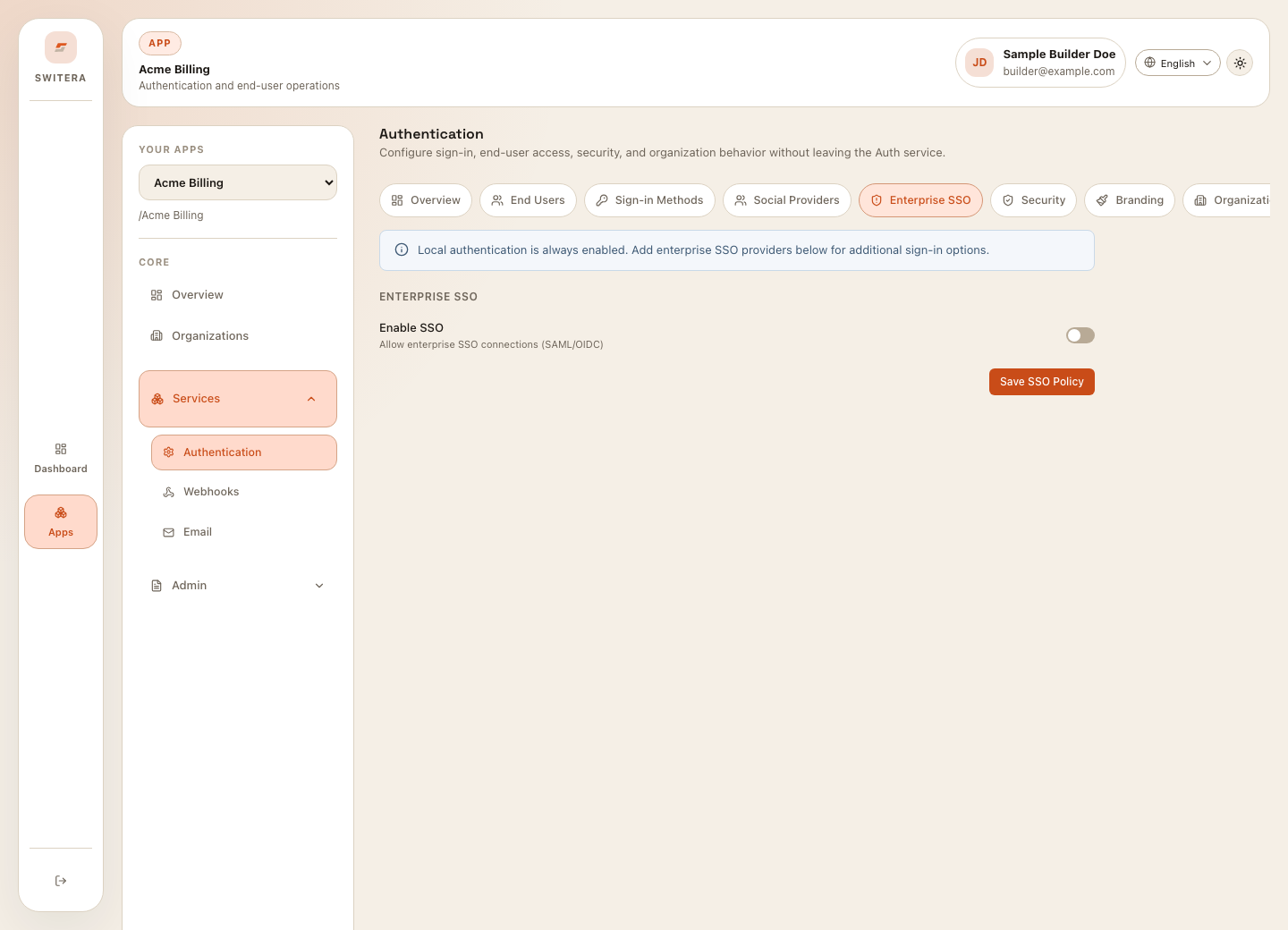
Enterprise SSO
Enterprise SSO lets customer organizations sign in through their identity provider. Configure SSO after the basic app, organization, and standard Auth setup work.
When to use SSO
Use SSO when:
- a customer requires their identity provider for login
- access should be controlled by the customer IT team
- users should not manage separate passwords
- role or group claims should influence app access
- deprovisioning must happen through enterprise identity lifecycle
Do not start with SSO if basic sign-in has not been tested yet.
Prepare with the customer
Collect:
- organization name and verified domain
- identity provider type, such as SAML or OIDC
- sign-in URL or issuer URL
- certificate or JWKS details
- required claims, such as email, name, groups, and subject
- expected role mapping
- test user account
Configure SSO
- Open the app.
- Open Authentication > Enterprise SSO.
- Create or edit the SSO connection.
- Enter provider metadata.
- Map required claims.
- Link the connection to the intended organization or domain.
- Save the SSO policy.
- Test with one user before broad rollout.
Test checklist
Before enabling SSO broadly:
- one test user can sign in
- user email is mapped correctly
- organization membership is applied as expected
- role or group mapping is understood
- logout behavior is acceptable
- fallback admin access remains available
- audit logs show the SSO configuration change
Directory sync
Use directory sync when the identity provider should manage people and groups over time. SSO authenticates the user. Directory sync keeps users, groups, and memberships aligned after authentication.
Related pages: