Branding and legal consent
Hosted Auth pages are user-facing. Use Authentication > Branding and Authentication > Compliance to make sign-in feel trustworthy and to collect required consent.
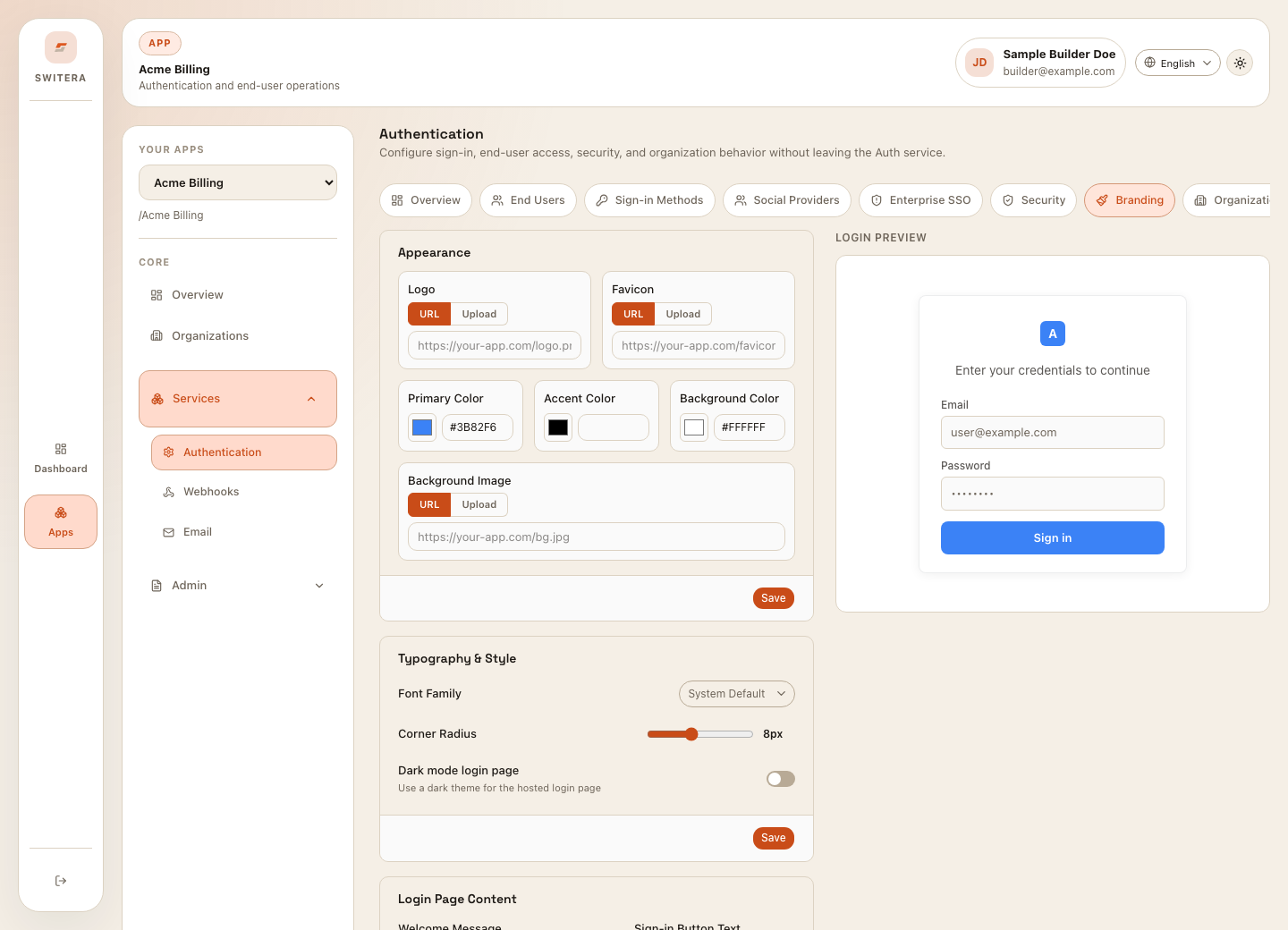
Configure branding
- Open Authentication > Branding.
- Add the app logo or logo URL.
- Set primary and accent colors.
- Review background color and page style.
- Write concise login page copy.
- Use the preview before saving.
- Test hosted login on desktop and mobile.
Keep copy clear. A user should understand which product they are signing into and why they are being asked to authenticate.
Branding checklist
- app name is recognizable
- logo is not blurry
- colors have enough contrast
- login copy is short and specific
- error states are readable
- mobile layout does not crop important content
- dark-mode settings are reviewed before being enabled for users
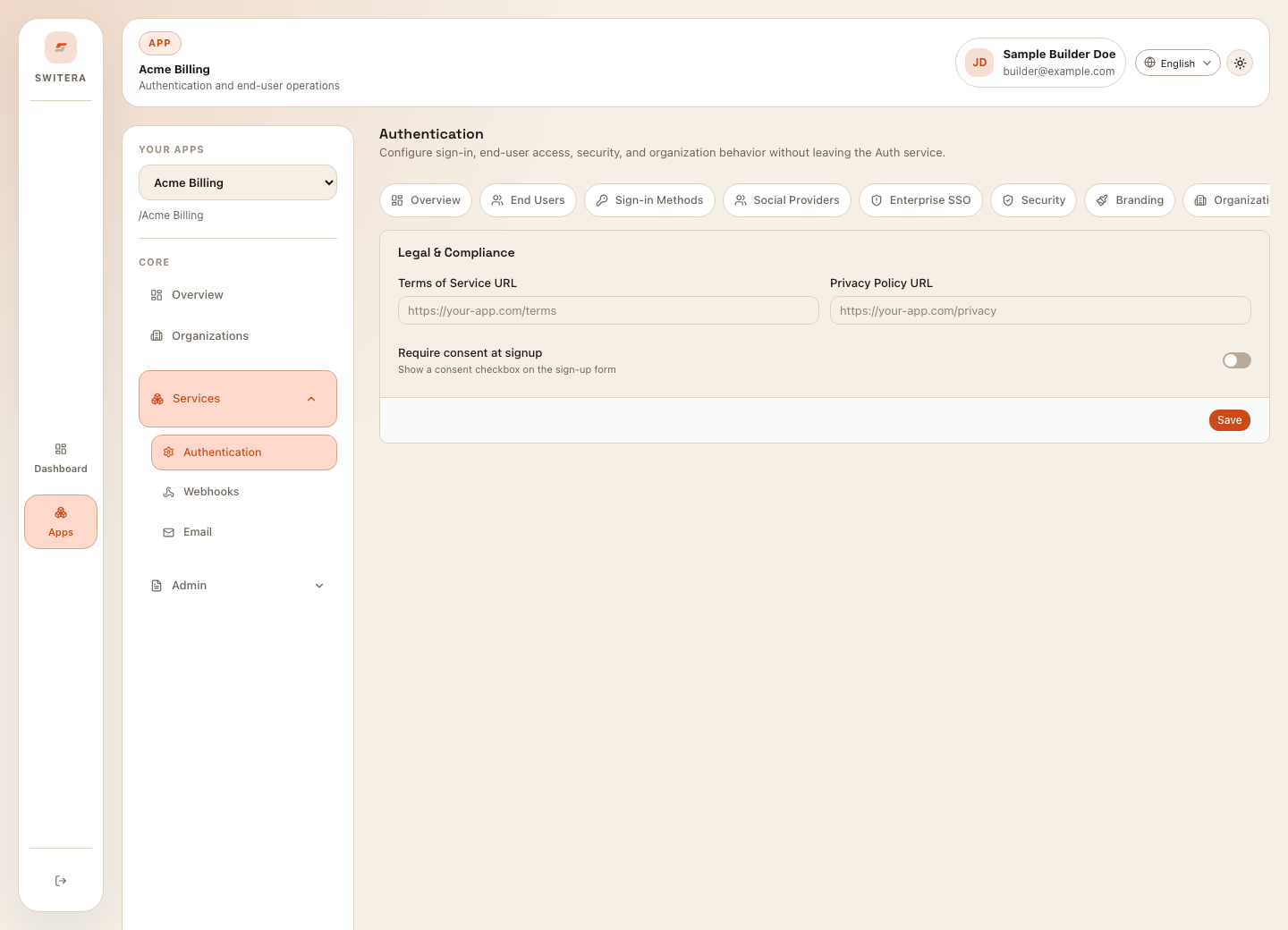
Configure legal consent
- Open Authentication > Compliance.
- Add the public terms URL if terms are required.
- Add the public privacy URL if privacy acknowledgement is required.
- Decide whether users must accept consent during sign-up.
- Save.
- Test sign-up and confirm consent appears exactly where expected.
Legal copy guidelines
- Link to final public URLs, not drafts.
- Use the same product or company name users recognize.
- Keep consent language understandable.
- Avoid collecting consent when the app policy does not require it.
- Re-test registration after changing links or consent requirements.
Common mistakes
- Using placeholder legal links.
- Enabling dark login mode without reviewing contrast.
- Publishing a hosted login page without product identity.
- Forgetting to test the mobile sign-up flow.
- Changing consent policy after launch without communicating internally.
Related pages: